OMR Sheet Printing | Guide to Printing OMR Sheets Correctly
OMR sheet printing refers to the process of producing machine-readable answer sheets with predefined bubbles, checkboxes, index marks and other readable fields used for multiple-choice examinations, surveys and assessments. These sheets are designed to be scanned and processed by OMR readers or OMR software for fast, accurate evaluation.
With modern OMR solutions like the Addmen OMR software, you can design and print your own OMR sheets on standard printers using common A4 paper — eliminating the need for specialized or pre-printed sheets.
1. What Is OMR Sheet Printing?
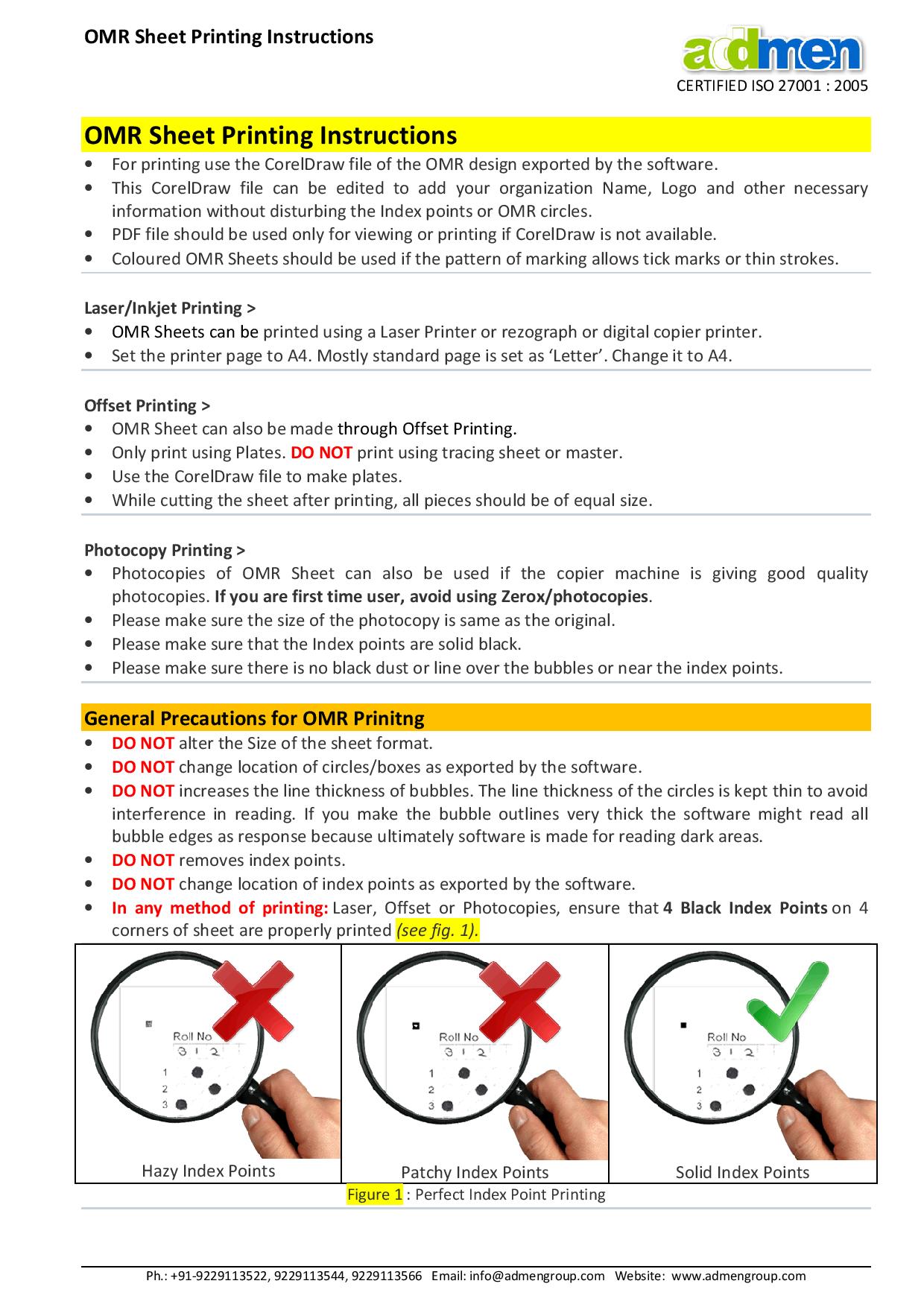
OMR sheets contain oval or circular bubbles or boxes that candidates fill in with a pen or pencil to indicate answers. These sheets also include index points (solid black markers) in all four corners that help scanners identify sheet orientation and layout.
The Addmen OMR software enables you to design a sheet and then print it using regular printers, allowing flexibility, customization and low printing cost.
2. Printing Technology Options
Laser Printers
- Ideal for black-and-white OMR sheets.
- Produce sharp, smudge-free prints with consistent contrast.
- Best choice for in-house OMR printing before scanning.
Inkjet Printers
- Suitable for colored OMR sheets or designs with two-colour elements.
- Must ensure ink dries completely and doesn’t smudge near bubbles or index points.
Offset Printing Press
- Recommended for large volume printing (bulk orders).
- Produce consistent print quality, especially for mass exams.
- Printing should use plates exported from design files (e.g., CorelDraw), not tracing sheets.
Photocopy Machines
- Acceptable only if machine produces high-quality, undistorted prints.
- Ensure the size of the copies exactly matches the original OMR design.
3. Paper Type, Size & Quality
- Standard white A4 paper (70–80 GSM) is ideal for OMR sheet printing and highly economical.
- Paper thickness does not affect scanning accuracy, since modern OMR software reads the scanned image, not the physical sheet thickness.
- Thicker paper (90–105 GSM) may be used where durability is important (e.g., long transport, repeated handling), but is not required for accurate OMR readings.
- Use plain, non-glossy white paper to ensure good contrast and clean scanning.
- Although A4 is most common, larger sheets like 18"x23" can be used in offset setups to print multiple sheets at once.
4. Printing of Colored OMR Sheets
Colored OMR sheets can be used when marking patterns require ticks or thin strokes instead of filled bubbles.
- Black must always be used for index points — these help the scanner detect sheet orientation.
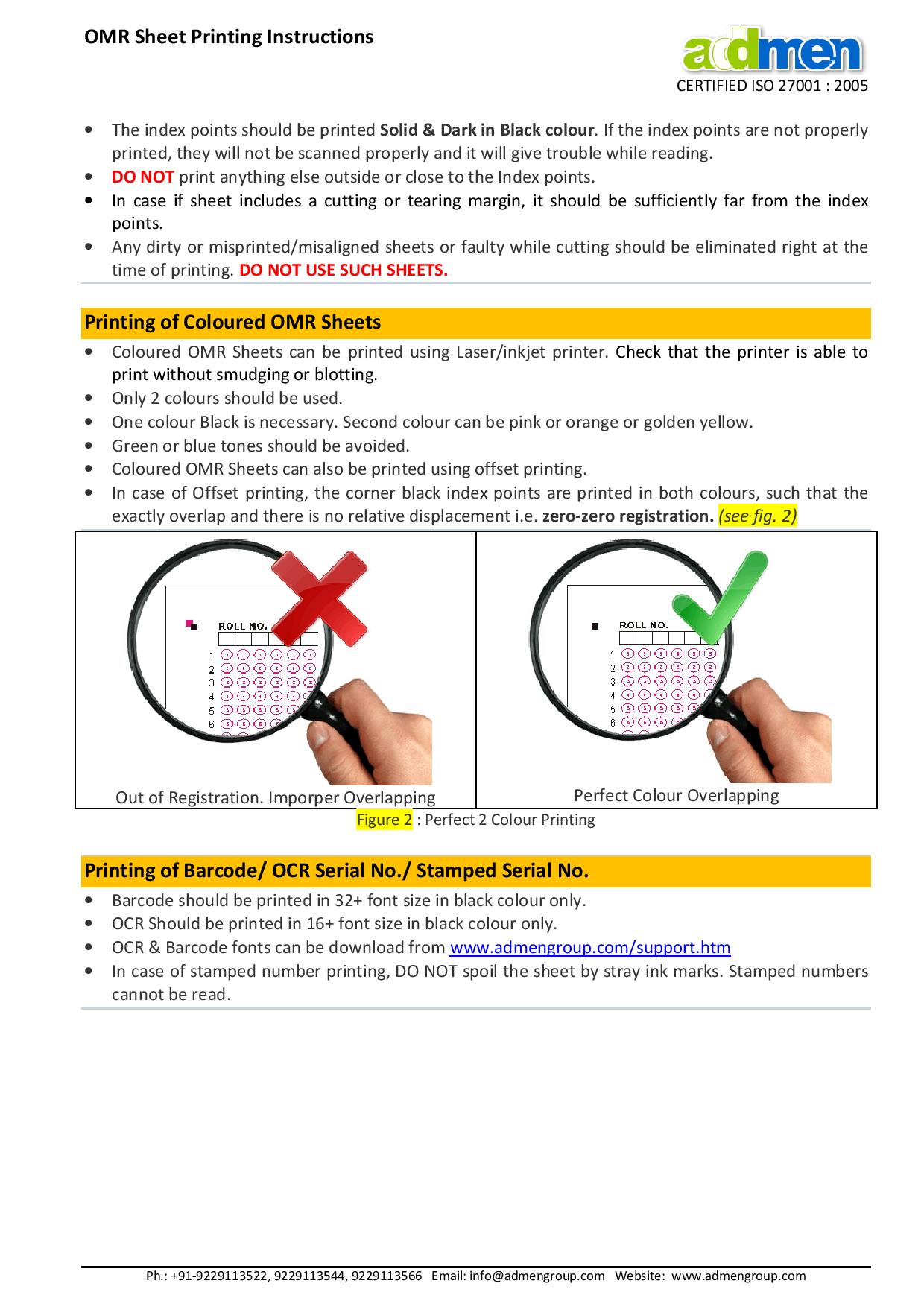
- A second light colour (e.g., pink, orange, yellow) can be used for bubble outlines. Dark colours like navy or green should be avoided as they can interfere with scanning.
- In offset printing, ensure zero-zero registration, meaning the black index points and coloured overlays align exactly — any misregistration will cause scanning errors.
5. General Printing Precautions
To ensure reliable OMR sheet output:
Layout Precision
- Do not alter the sheet size or layout exported by the OMR software.
- Do not shift or resize bubbles — their position and size are calibrated for scanning.
- Index points must not be moved or removed.
Print Settings
- Always set page size to A4 (or your design’s size) — avoid default “Letter” settings.
- Disable scaling options like “Fit to Page” to preserve the original design dimensions.
- Use high resolution and quality printing to ensure bubbles and index points are crisp.
Avoid Altering Bubble Features
- Do not increase line thickness of bubbles — thicker outlines can be misinterpreted as filled responses.
- Do not enlarge fonts inside bubbles or use bold typefaces.
Clean Edges Only
- No extra text or graphics should be printed near index marks.
- Ensure sufficient white space around the four corner index points.
6. Test Print & Scan Verification
Before printing large quantities:
- Always print a sample sheet and test scan it to ensure your printer, paper and scanner settings are producing accurate readings.
- Check for attachment of barcode/OCR fields if used, and verify they scan properly.
- Reject any misprinted, smudged, faded or distorted sheets — these cause scanning errors later.
7. Common Printing Mistakes to Avoid
Table
| Mistake |
Impact |
| Changing layout size |
Misalignment of bubbles and index points |
| Thick bubble outlines |
False reads during scanning |
| Printing near index marks |
Scanner misreads or rejections |
| Using dark coloured sheets |
Poor contrast and scanning failures |
| Enabling “Fit to Page” |
Distorted dimensions |
| Best practices help eliminate these errors and improve result accuracy. |
|
8. Why Accurate OMR Printing Matters
Correct OMR printing is critical because even minor print errors — such as misplacement of index points, distorted bubbles, or improper paper size — can cause scanners to misinterpret responses or reject sheets entirely. Following the standards above ensures:
- Reliable data capture
- Smooth, error-free OMR scanning
- Reduced re-print and evaluation costs
- Consistency across batches and exam cycles
9. Summary
- Use plain white A4 paper (70–80 GSM) and proper printers.
- Follow the design layout exactly as exported from your OMR software.
- Keep index points solid black with sufficient margin.
- Test-scan before mass printing to validate accuracy.
- Avoid printing errors that affect scanning reliability.
Read more: